
If you're loading in a real shop's worth of inventory - more than a handful of items - bulk upload is much faster than adding items one at a time.
1. Get the template
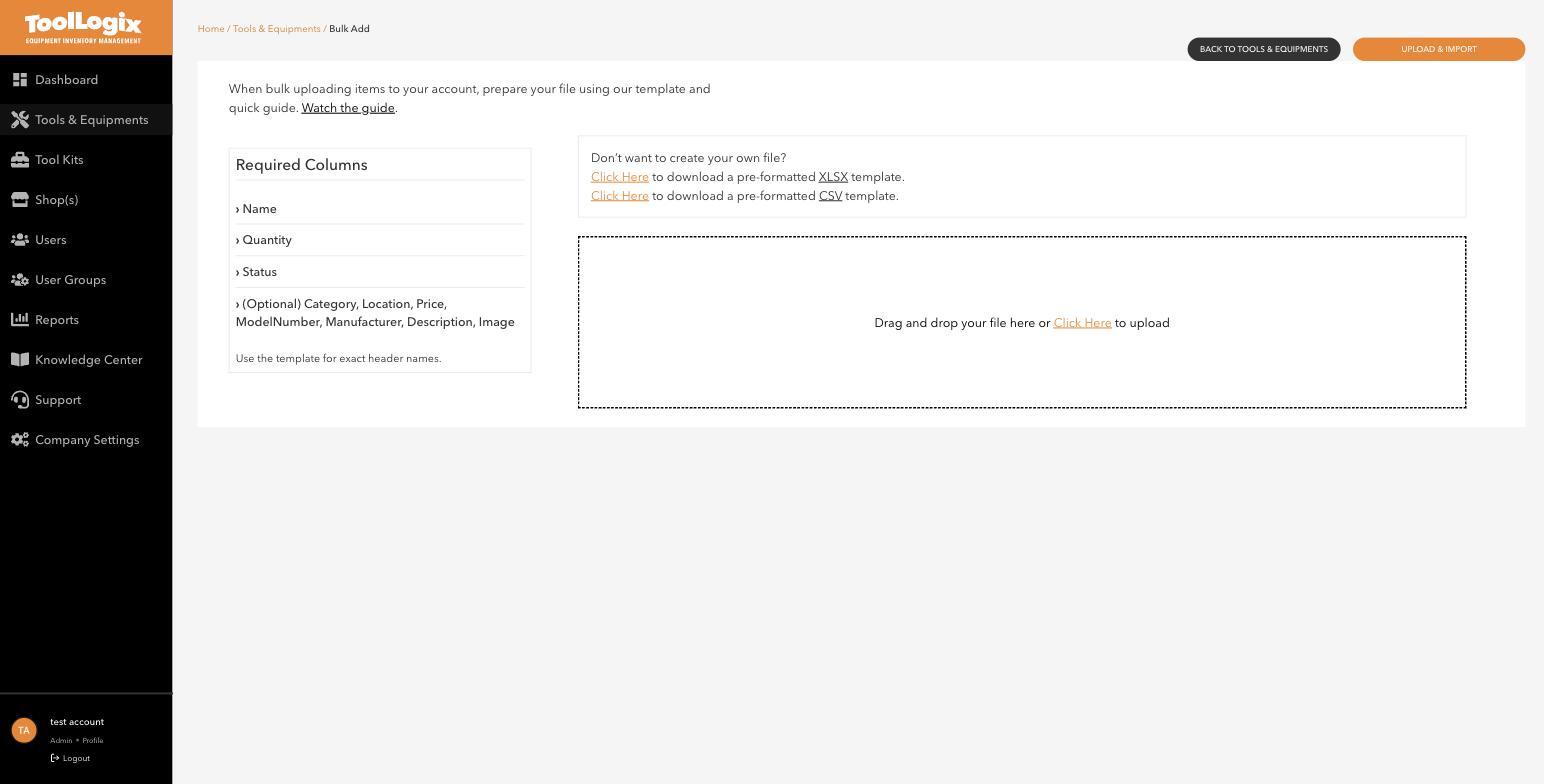
- In the left menu, open Tools & Equipments and click Bulk.
- Download the pre-formatted XLSX or CSV template - whichever you're more comfortable editing.
2. Fill it in
Three columns are required for every row:
- Name
- Quantity
- Status
These are optional, fill in whatever you have: Category, Location, Price, ModelNumber, Manufacturer, Description, Image.
Use the template's exact header names. This is the most common way a bulk upload fails - a renamed or reordered column, an extra space, a header that doesn't match. If your import errors out or rows come in blank, this is the first thing to check.
3. Upload it
- Drag your finished file into the upload area, or click to browse for it.
- Click Upload & Import.
There's a short guide linked directly on the Bulk Add screen ("Watch the guide") if you want to see the format in action before you build your own file.
If something goes wrong
The import failed or rows are missing data. Re-download a fresh template and copy your data into it, rather than editing header names on an old file - a header that doesn't match exactly is the most common cause.
I uploaded the wrong file or made a mistake. Go to Tools & Equipments, find the affected items, and correct them individually, or remove them and re-import.
Still stuck? Open Support in the left menu of the app and click Create ticket, and we'll respond within one business day.