
Alerts tell you when stock runs low before your crew finds out the hard way - standing in the shop with an empty shelf.
Set an alert- In the left menu, open Tools & Equipments and click Alerts.
- Check Get Notification to turn alerts on.
- Set a Minimum QTY - you'll be notified when available stock drops to or below this number.
- Set a Maximum QTY if you want a ceiling alert too - a very high number here (like 555555) effectively means "no maximum."
- Choose whether the check applies Available In Shop(s) or across Total Supply.
- Click Save Settings.
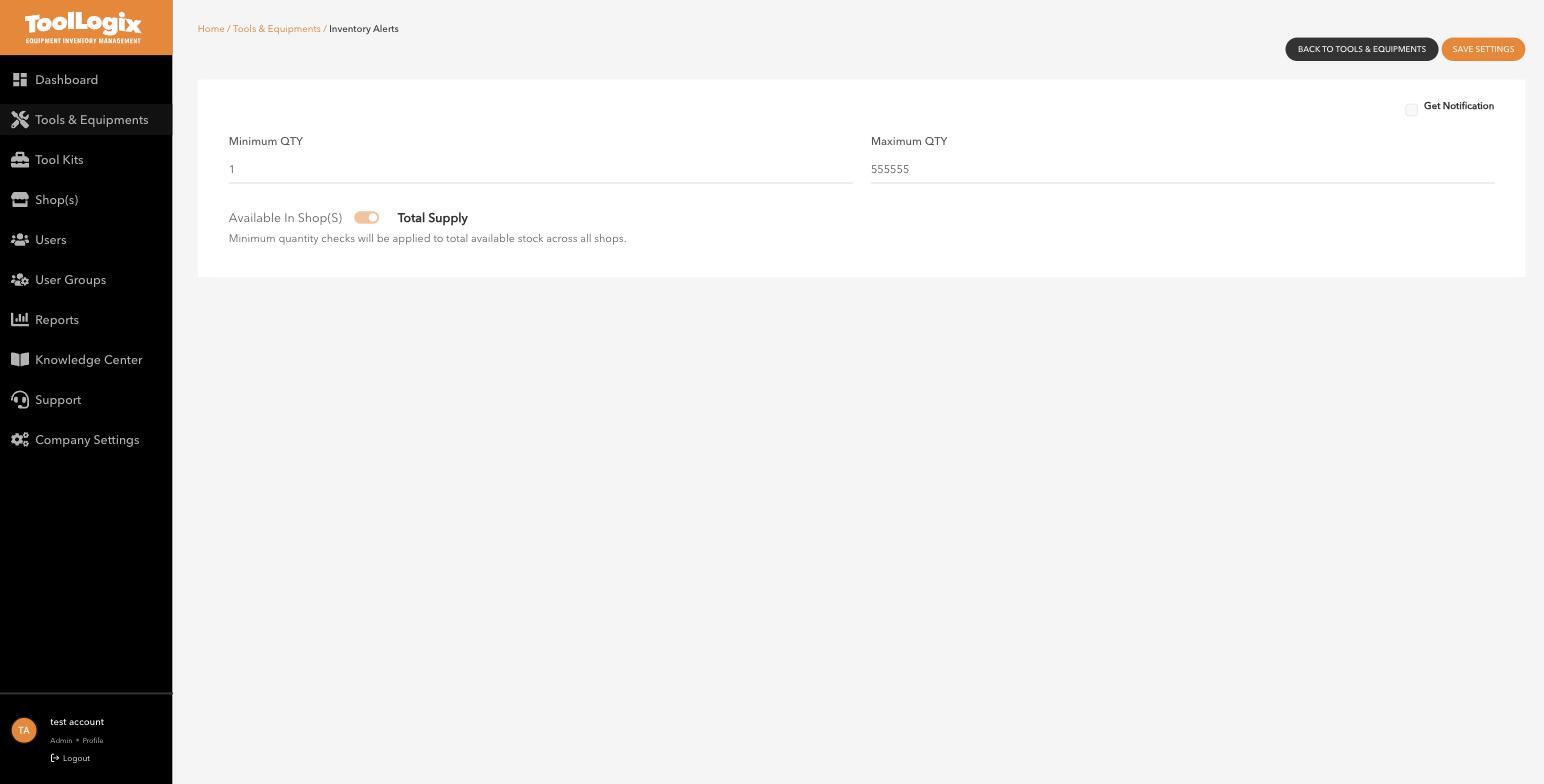
This toggle matters more than it looks. With Total Supply selected, the minimum quantity check adds up available stock across every shop before comparing it to your threshold - so you could be down to your last unit at one location and get no alert, because another shop is still well stocked. Switch to Available In Shop(s) if you want each location checked on its own.
If something goes wrongI'm not getting notified even though stock is low. Confirm Get Notification is actually checked - it's off by default - and check whether you're on Total Supply when you meant per-shop.
The maximum alert keeps firing. If you don't need a ceiling alert at all, set Maximum QTY very high (matching the pattern above) rather than leaving it at a low default.
Still stuck? Open Support in the left menu of the app and click Create ticket, and we'll respond within one business day.