
When a tool breaks, goes missing, or needs a closer look, report it against the item directly - don't just quietly stop counting it.
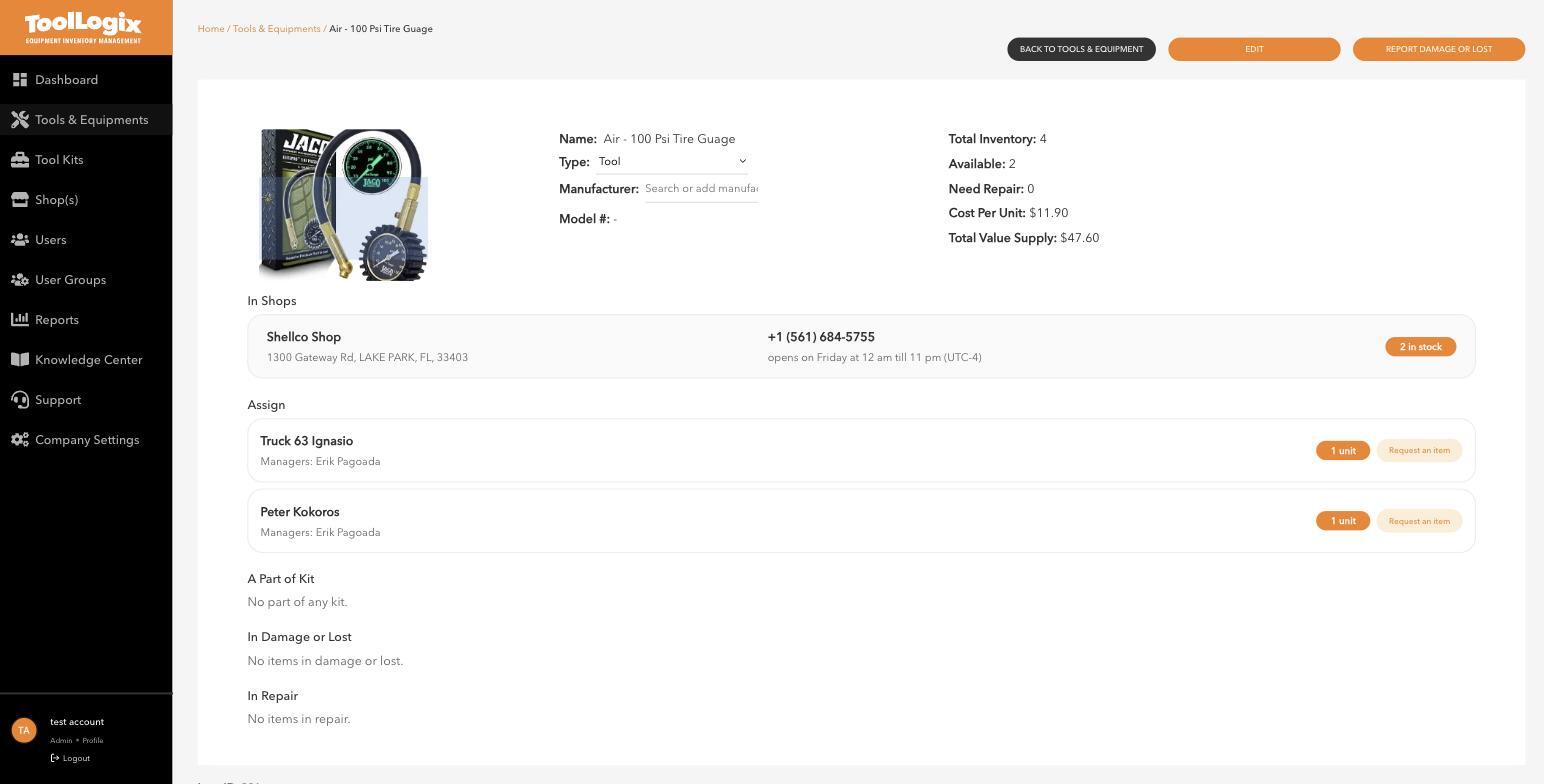
Report an item- Find the item under Tools & Equipments and click View.
- Click Report Damage or Lost in the top right.
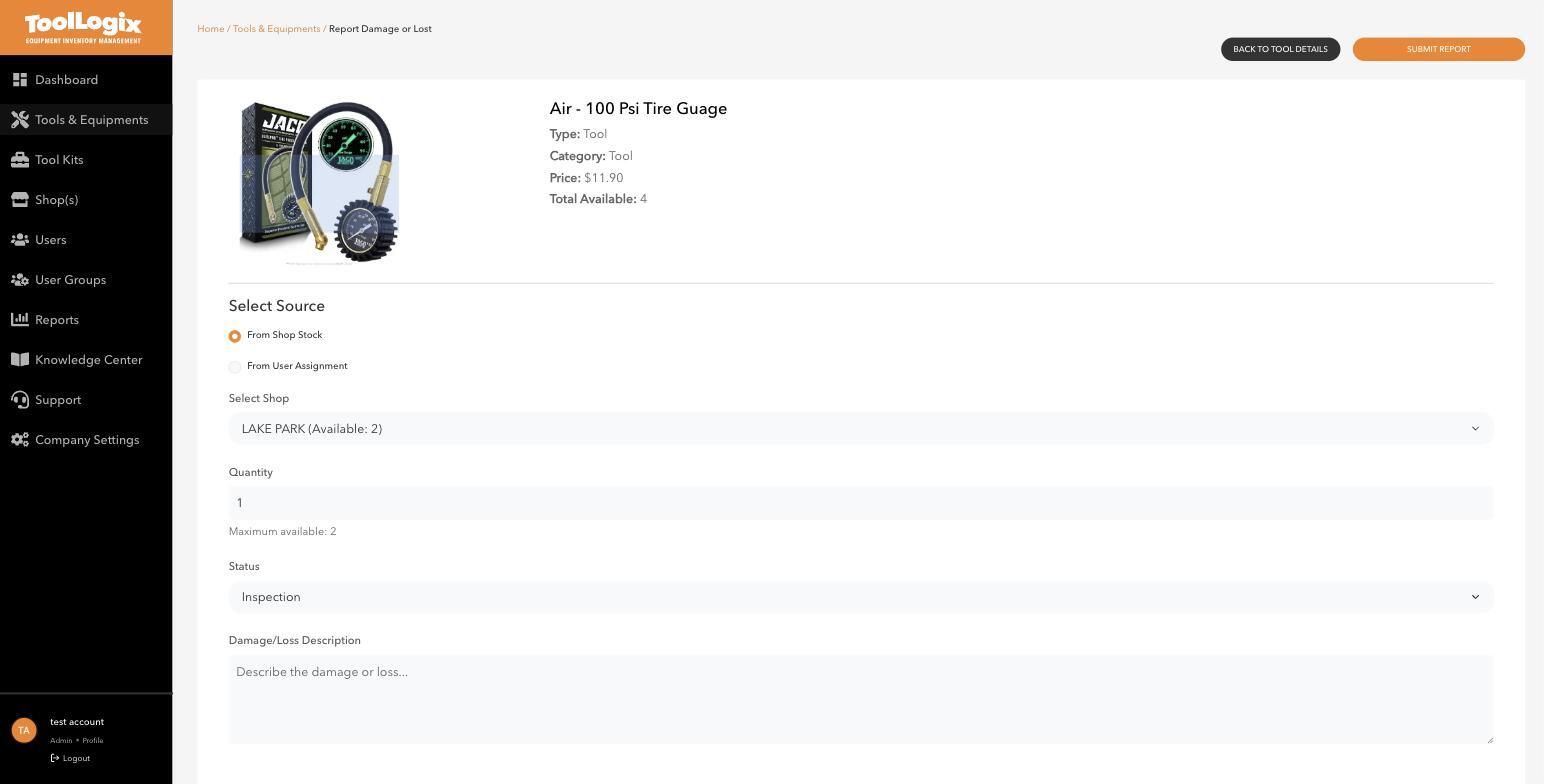
- Under Select Source, choose whether the item is coming From Shop Stock or From User Assignment - i.e. whether it's sitting in the shop or currently checked out to someone.
- Choose the shop (or user) and how many units this applies to. The form shows the maximum available so you can't over-report.
- Set the Status: Inspection, Lost, Damaged, or Non-Repairable.
- Add a Damage/Loss Description - what happened, and any photos if the form offers it. Detail here makes the eventual repair or write-off decision faster.
- Click Submit Report.
 Where it shows up afterward
- The item's own detail page, under In Damage or Lost.
- The Damaged & Lost Items report.
- The shop's damaged/lost counters on its overview.
If you marked something Damaged rather than Non-Repairable, see Sending a tool for repair and returning it to service (article not yet published) for the next step.
If something goes wrongI picked the wrong status. Open the item's detail page and check under "In Damage or Lost" - if it hasn't moved further along, you may be able to correct it there; otherwise submit a new report with the right status and note the correction in the description.
Still stuck? Open Support in the left menu of the app and click Create ticket, and we'll respond within one business day.