
Every report in ToolLogix lives in one place, and they all follow the same basic shape: pick your filters, read the table, then download or print what you need.
Where reports liveIn the left menu, click Reports. You'll see ten report families, grouped into two rows:
- General Inventory Reports - overall inventory levels, movements, and shop-based distributions.
- Damaged & Lost Items - current damaged and lost items, with a print-ready filtered list.
- Repairs - equipment currently in repair.
- Damage Lost & Repair History - the complete history, including photos and status changes.
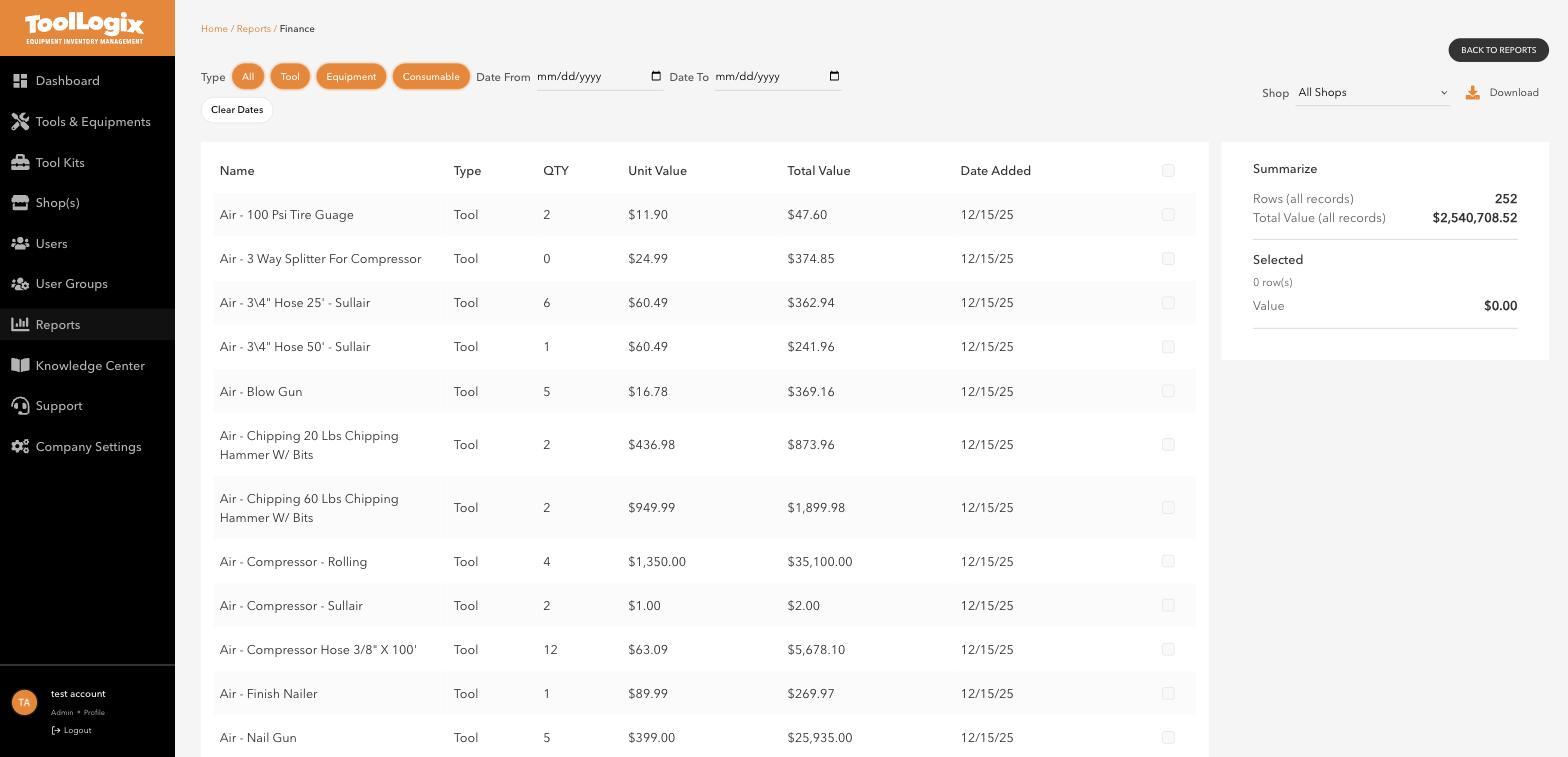
- Finance Reports - expenses, depreciation, and value summaries by time period.
- User Financial Reports - the same, broken out per user.
- Pending Request - equipment requests and pending return/remove requests awaiting review.
- Activity & Transactions - check-outs, check-ins, transfers, and consumable usage (this one opens into 6 more specific reports - see below).
- Utilization & Performance - most/least used tools, and what's missing or overdue.
- User & Access Reports - user holdings, activity, supervisors, and permissions.
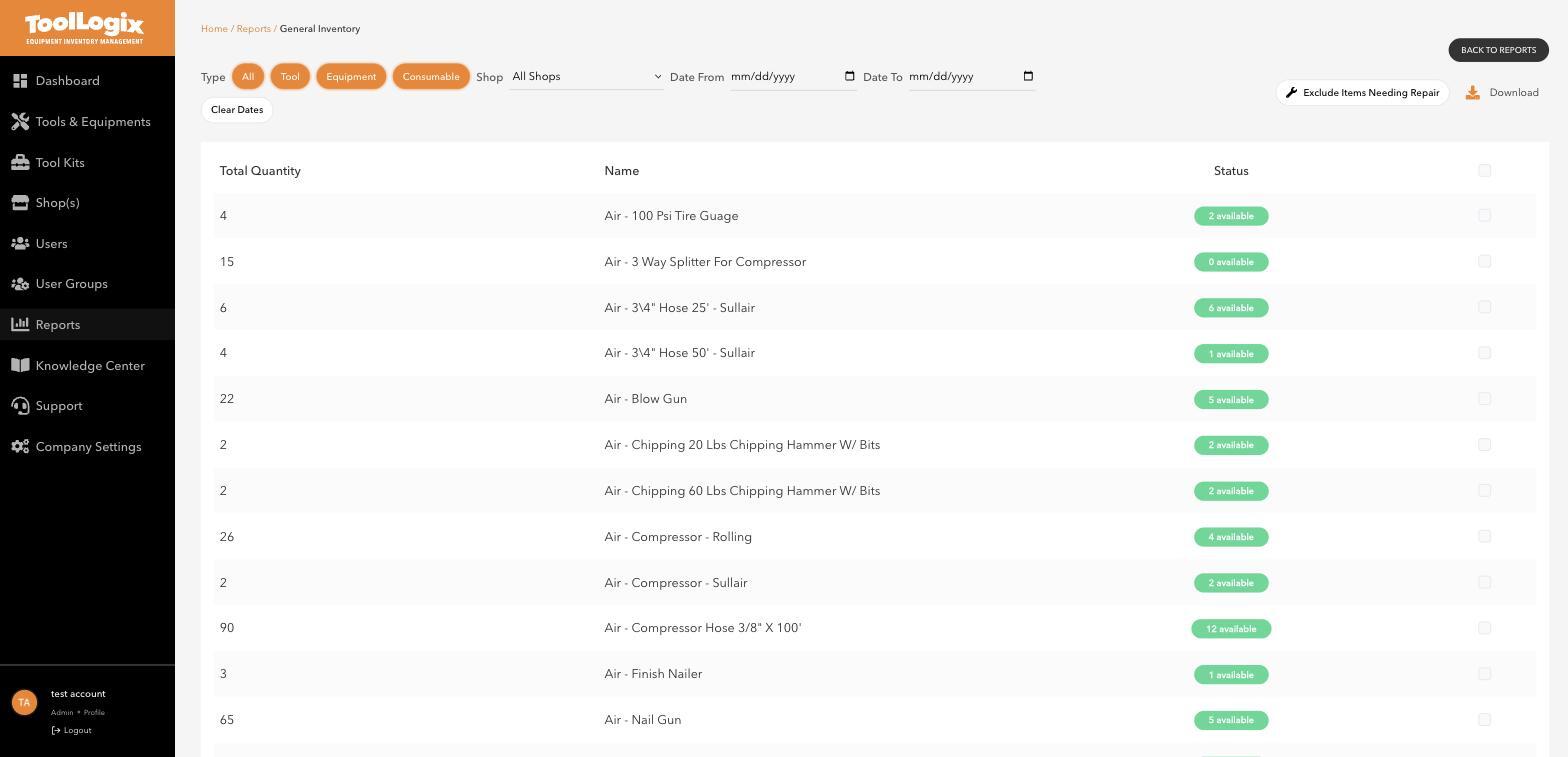
Most reports share the same controls, though not every report has every one of them:
- Filters - Type (All/Tool/Equipment/Consumable), Shop, and a Date From/Date To range. Clear Dates resets the range.
- Summarize - a right-hand panel that totals the rows on the page (and their value, where relevant), plus a live total for whatever rows you've checked with the checkboxes on the left.
- Download - exports the filtered view.
- Print - available on reports built for handing someone a physical list, like Damaged & Lost Items.
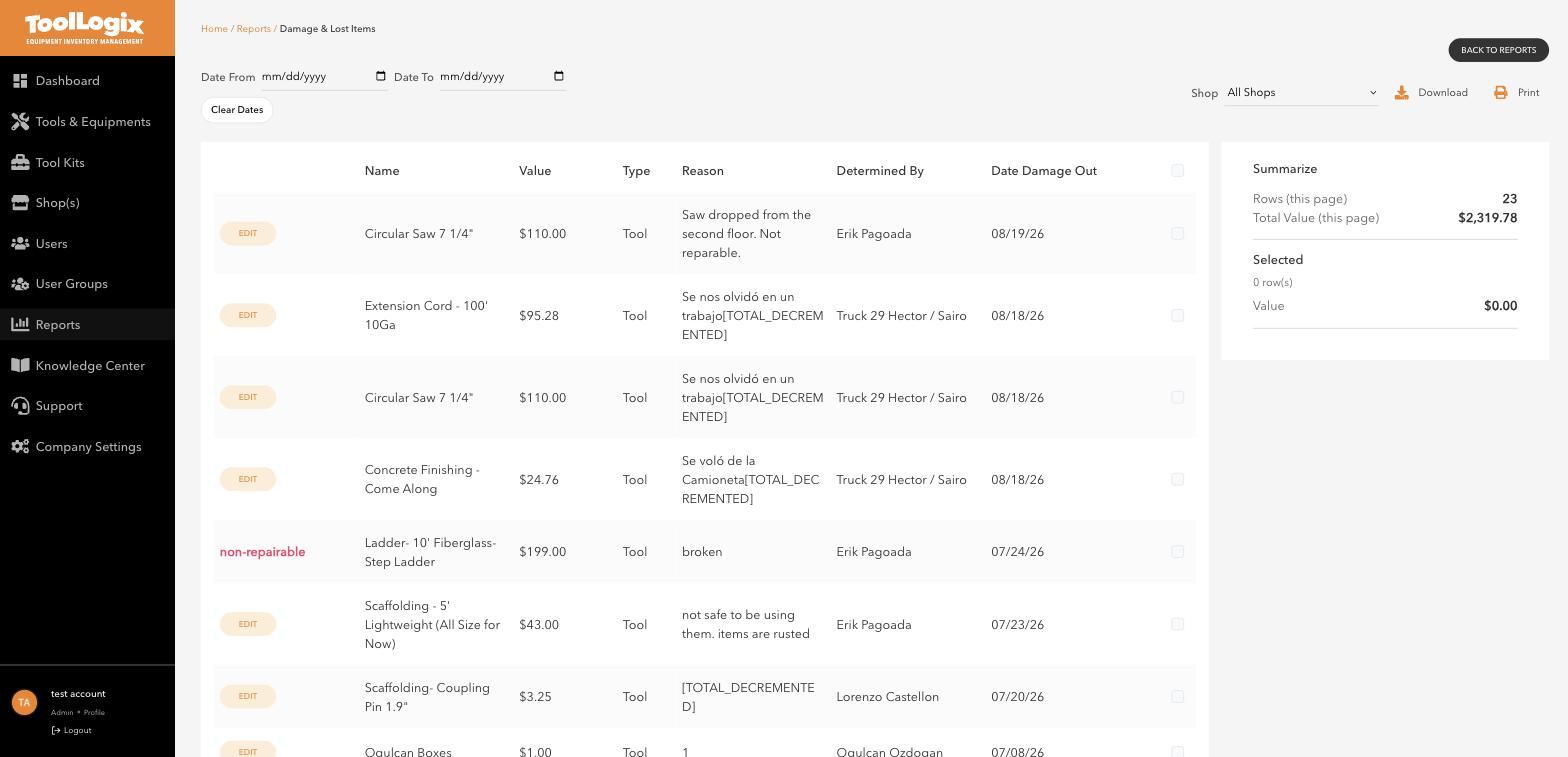
Clicking into Activity & Transactions doesn't open a single report - it opens a menu with six:
- Inventory Activity Log - the complete transaction history: check-outs, check-ins, transfers, damage/loss reports, and more, one row per event with User, Action, Details, and Date columns.
- Check-Out/Check-In Report - a detailed log of equipment movements specifically.
- Transfer History Report - all inter-location transfers (shop to shop, shop to user, LTT to LTT).
- Consumables Activity Log - usage tracking for consumables like drill bits, blades, and fasteners.
- LTT Ownership Log - history of who has owned or managed each job site, truck, or trailer. [VERIFY: exact expansion of "LTT" - it appears on-screen but wasn't spelled out anywhere in this walkthrough.]
- LTT Inventory Log - complete inventory check history for each LTT.
If you're trying to answer "who did what and when," start with the Inventory Activity Log - it's the single feed everything else breaks out from.
The numbers behind Finance ReportsFinance Reports totals your entire inventory by unit and total value - as a live example, this account's Finance Reports currently show 252 rows worth $2,540,708.52 combined, visible in the same Summarize panel described above. Your own total will be entirely different and will shift as you add, remove, or reprice items.
 If something goes wrong
A report looks empty. Check your filters first - an active Date From/Date To range or a specific Shop selection is the most common reason a report that should have data shows nothing. Click Clear Dates and set Shop back to All Shops to rule this out.
I need a report I don't see here. Check Tracking value and depreciation with Finance Reports and Finding overdue, missing, and under-used tools for two of the report families in more depth - between those and this overview, most day-to-day questions are covered by one of the ten families above.
Still stuck? Open Support in the left menu of the app and click Create ticket, and we'll respond within one business day.