
Not everyone needs admin access to get gear - a Field Worker can request an item themselves, and an admin or manager approves it from a queue.
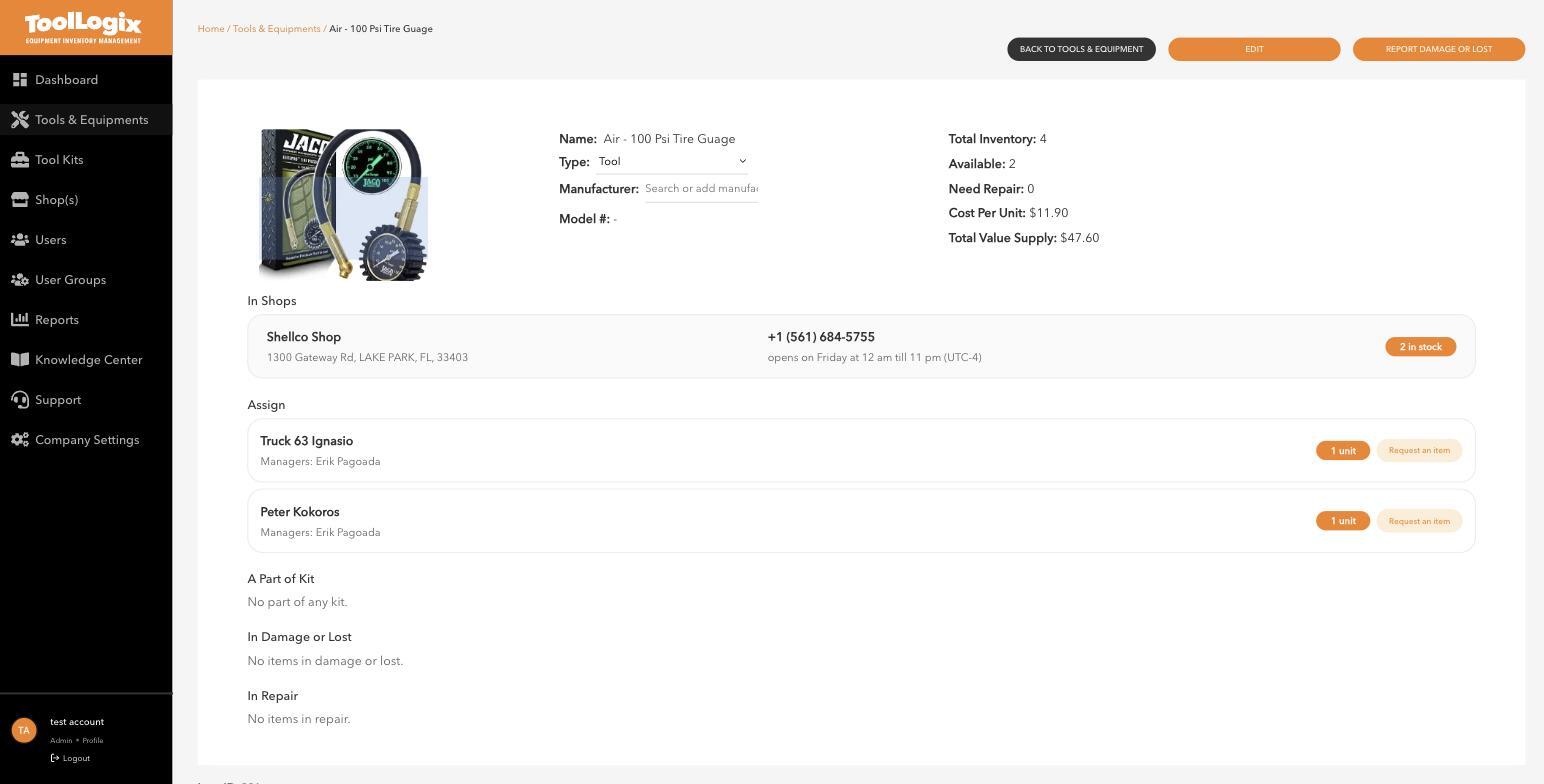
Requesting an itemFrom a tool's detail page, a Request an item button is available next to that tool. [VERIFY: the exact request form a Field Worker sees - quantity, notes, urgency fields, etc. - since this could only be confirmed from an admin login, not a Field Worker's.]
- In the left menu, open Tools & Equipments and click Requested.
- The list defaults to Pending requests, showing the requester's name, email, total items, and when they asked.
- Click Review to see exactly what was requested.
- Use the checkmark to approve, or the trash icon to deny.
[Screenshot: requested-items.jpg - the Requested Items queue]
Pending requests also surface on the dashboard, so nothing sits unnoticed for long.
If something goes wrongA request I approved doesn't show as assigned. Check the tool's detail page under "Assign" - approved requests are fulfilled the same way as a manual assignment, and the same per-shop stock rules apply.
Someone says they requested something but I don't see it. Switch the filter at the top of the Requested Items list away from "Pending" - it may already have been approved, denied, or requested against a different item than expected.
Still stuck? Open Support in the left menu of the app and click Create ticket, and we'll respond within one business day.