
People change crews, leave jobs, or just need to hand something off. Transfer moves gear from one person (or truck, or tool cart) straight to another, without checking it back into shop stock first.
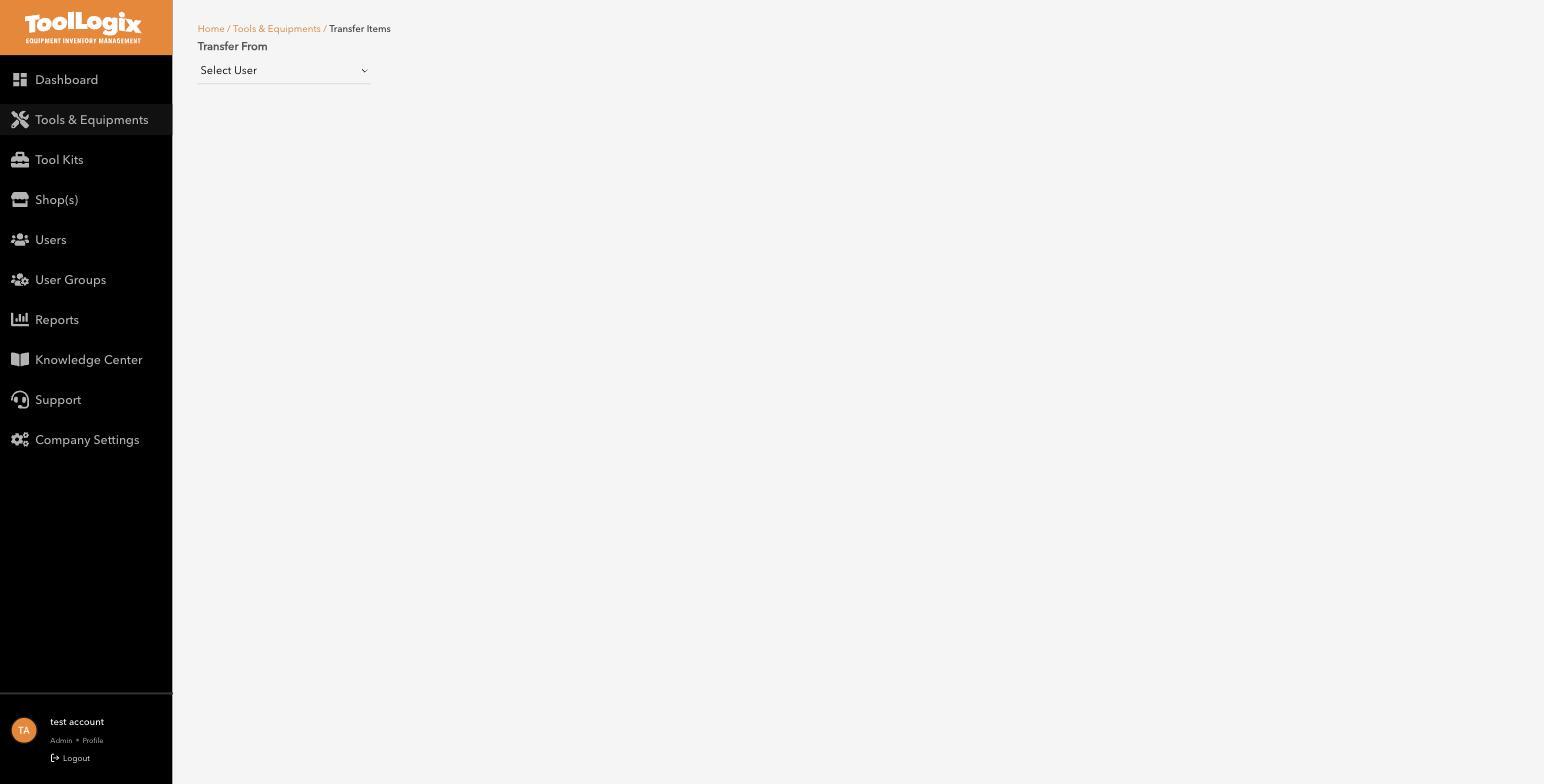
Transfer an item- In the left menu, open Tools & Equipments and click Transfer.
- Under Transfer From, select the user currently holding the gear.
- [VERIFY: once a "from" user is selected, the form should list their currently assigned items and a "Transfer To" field - confirm the exact field names and whether quantity can be split between recipients.]
- A crew change - gear moves from one Field Worker directly to another.
- An employee departure - see Deactivating vs. deleting a user (article not yet published) for the recommended order (transfer their gear first, then deactivate).
- Reassigning a truck's load to a different truck for the day.
The person I'm transferring from doesn't appear to be holding anything. Check the tool's own detail page under "Assign" to confirm who currently has it - it may already have been checked back in or transferred.
Still stuck? Open Support in the left menu of the app and click Create ticket, and we'll respond within one business day.