
Use this for one item at a time - a new drill, a generator, a box of gloves. If you have more than a handful to enter, Bulk uploading tools and equipment will save you a lot of clicking.
Add an item- In the left menu, open Tools & Equipments and click Add.
- Enter a Tool Name.
- Choose a Type: Tool, Equipment, or Consumable (see below for how to pick).
- Enter Price and Stock - the quantity you're adding right now.
- Manufacturer, Model Number, Category, Image, and Description are all optional. Add a photo if you can; it makes a check-in dispute ("that's not the one I gave you") much shorter to resolve.
- Leave Active checked - it's on by default - and click Create.
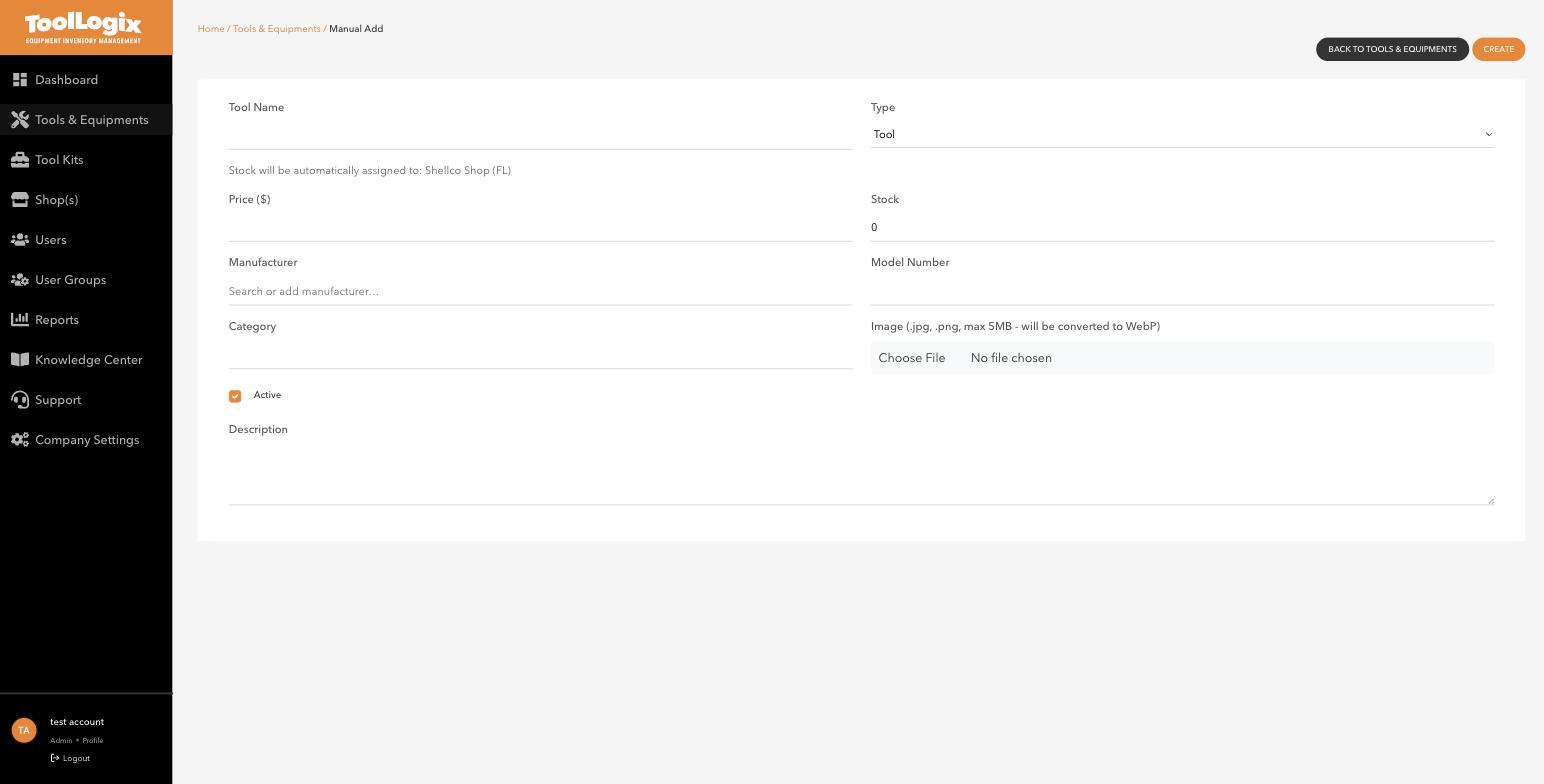
New stock is automatically assigned to your shop - the form tells you which one above the Price field. If you work out of more than one shop, add the item from whichever shop it actually lives in.
Tool, Equipment, or Consumable - which one?The type you choose affects how the item behaves elsewhere in ToolLogix (reports, kit rules, and how "available" is calculated), so it's worth getting right:
- Tool - durable, hand-held gear that gets checked out and returned: drills, saws, levels, hoses. If it comes back after the job, it's a Tool.
- Equipment - larger or higher-value gear, often shop-assigned rather than carried by one person: compressors, generators, rolling equipment.
- Consumable - anything that gets used up and doesn't come back: gloves, blades, fasteners, tape. Consumables are tracked by quantity, not by who currently holds them.
If you're not sure which bucket something falls into, ask: does this come back after the job? If yes, it's a Tool or Equipment. If it's gone once it's used, it's a Consumable.
ImagesUploaded images are .jpg or .png, up to 5MB, and are automatically converted to WebP for faster loading. You don't need to resize or convert anything yourself first.
If something goes wrongAn item is showing the wrong type. Open the item and use the Type dropdown to change it - no need to delete and re-add.
I added the wrong quantity. Open the item, click Edit, and correct the stock count.
Still stuck? Open Support in the left menu of the app and click Create ticket, and we'll respond within one business day.