
Each person on your team gets their own login - the whole point of ToolLogix is knowing who has which tool, so shared accounts defeat the purpose.
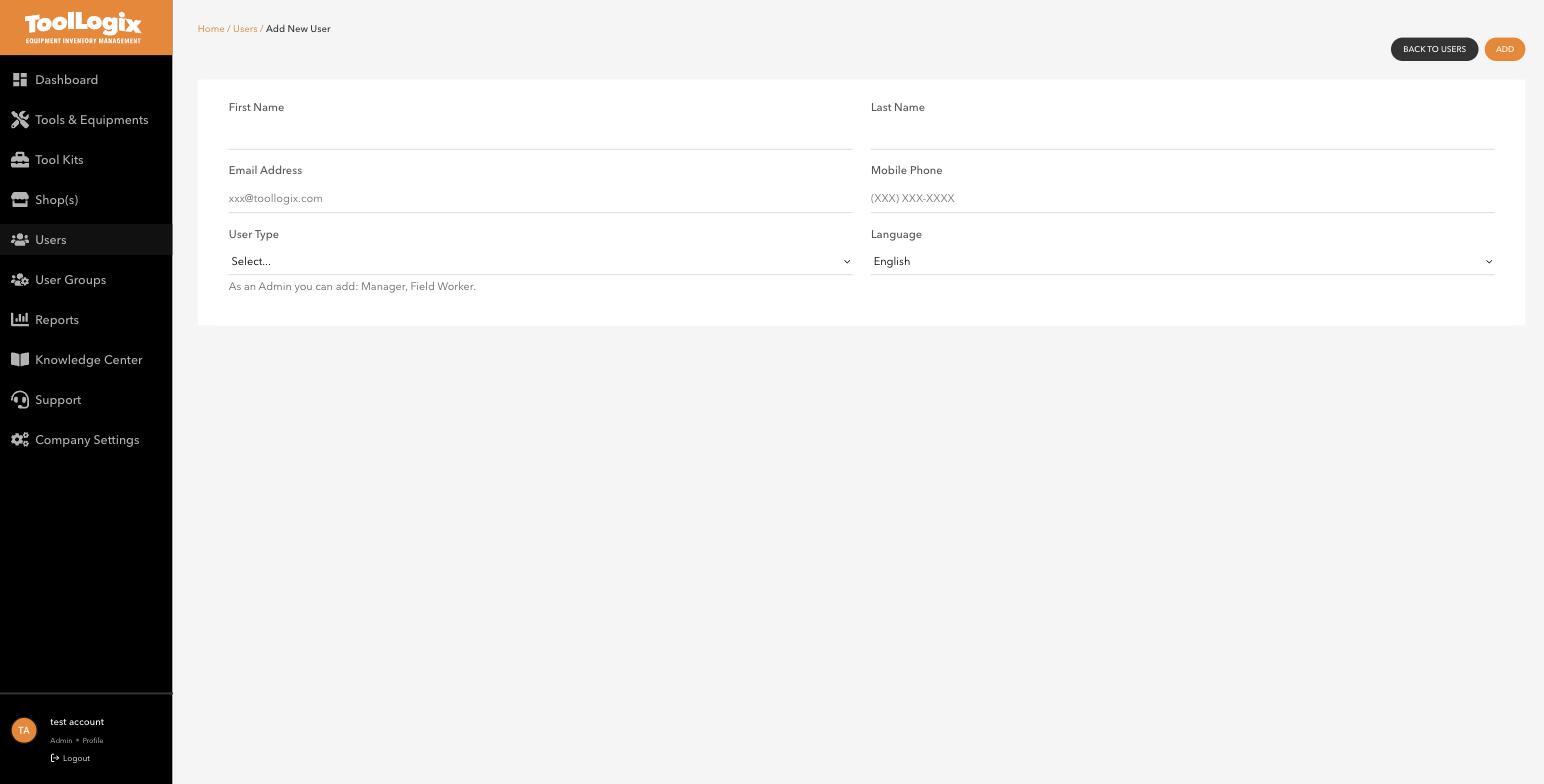
Adding one person- In the left menu, open Users and click Manual Add.
- Enter their First Name, Last Name, Email Address, and Mobile Phone.
- Choose a User Type. As an Admin, Manual Add lets you assign Manager or Field Worker directly - if you need to add another Admin or a Shop Supervisor, use Bulk Add (below).
- Choose a Language - English or Spanish.
- Click Add.
 Adding a whole crew at once
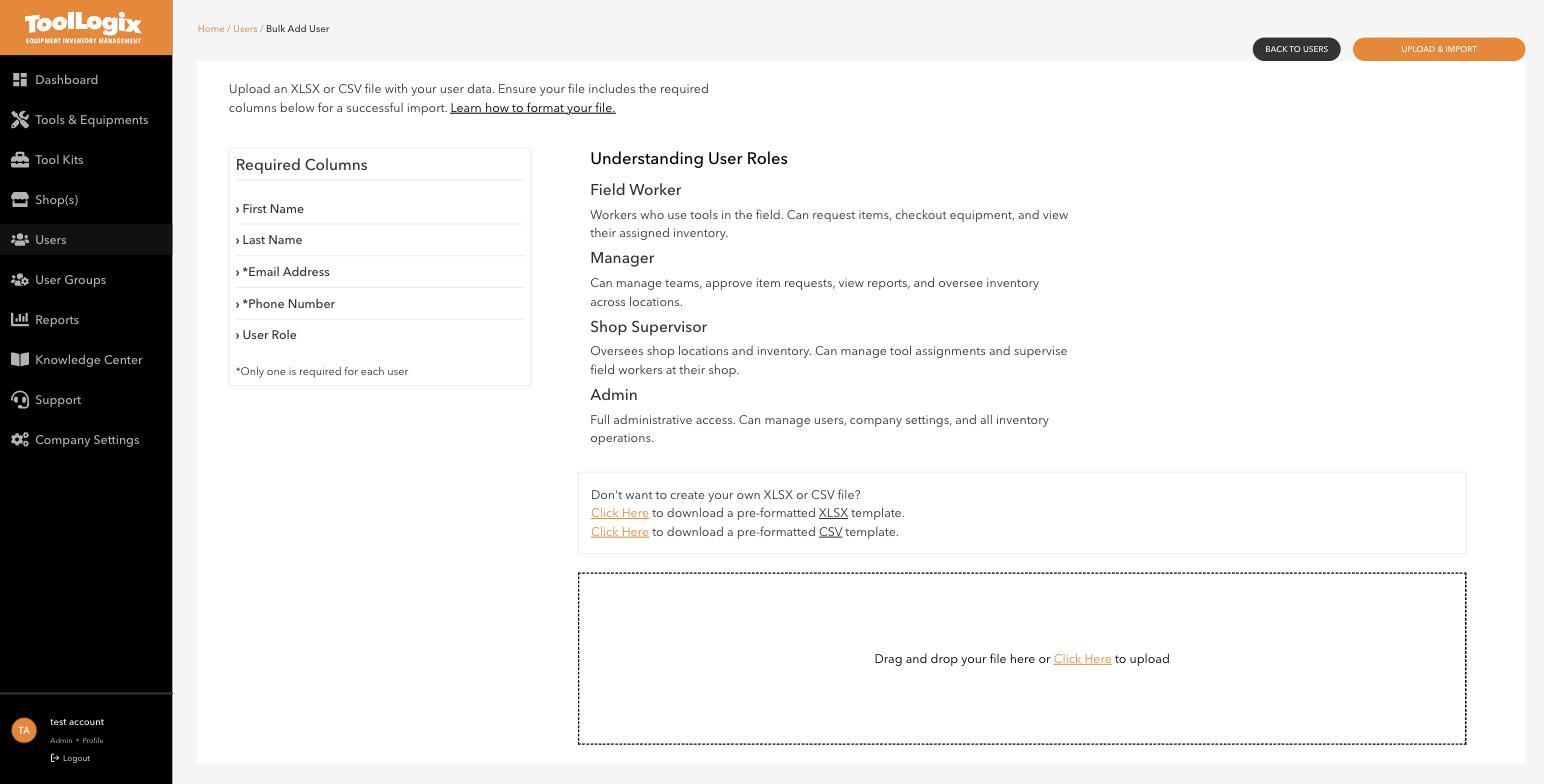
- In the left menu, open Users and click Bulk Add.
- Download the pre-formatted XLSX or CSV template.
- Fill in First Name, Last Name, and at least one of Email Address or Phone Number (only one is required per user), plus User Role - this column accepts all four roles, including Shop Supervisor and Admin.
- Drag your file into the upload area and click Upload & Import.
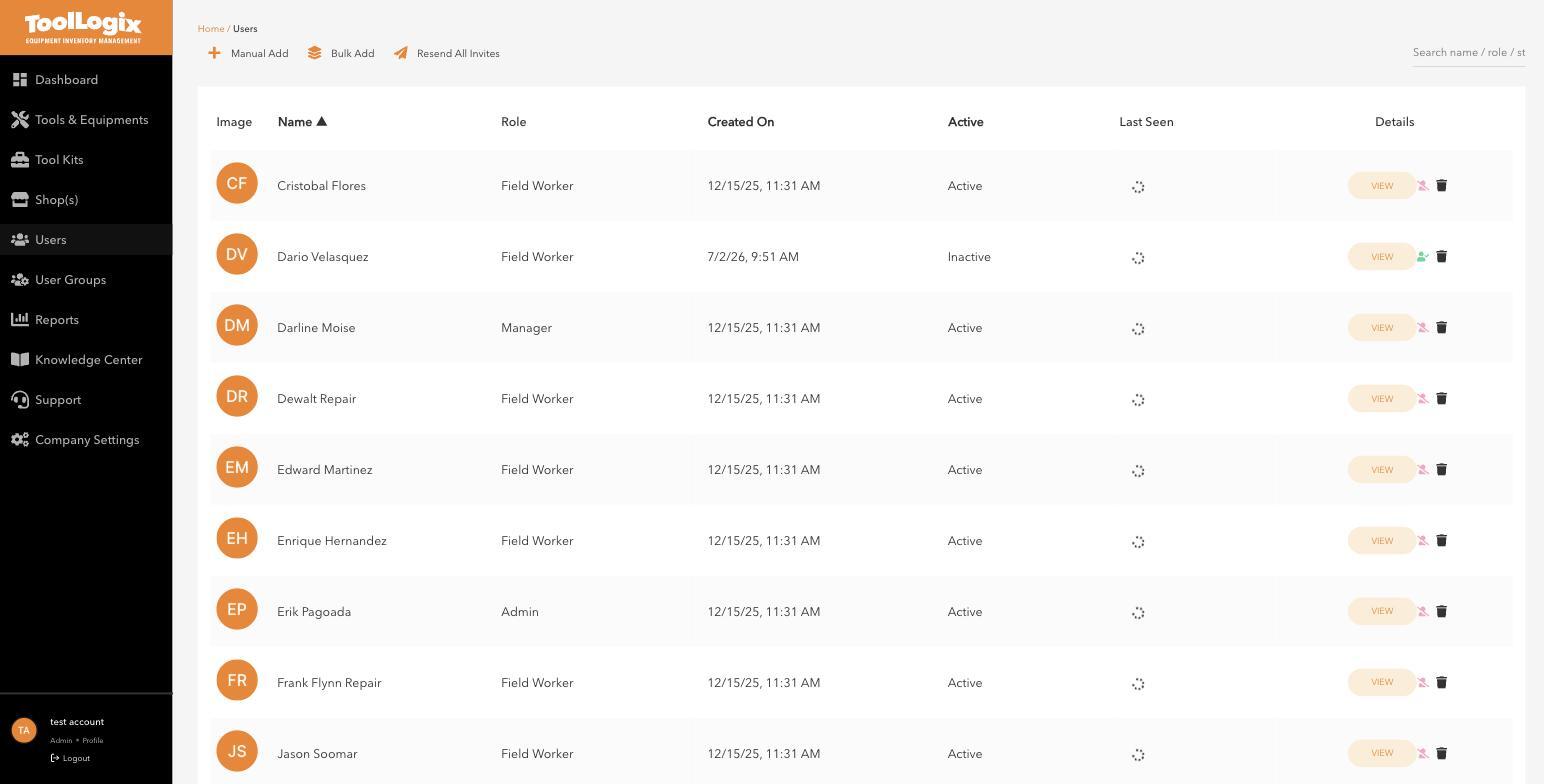
Each person gets an invite email once they're added, whichever method you used. If someone says they never got theirs, don't re-add them - go to the Users list and click Resend All Invites at the top of the page.
For what each role can actually do once they're in, see Roles explained: Admin, Manager, Shop Supervisor, Field Worker.
If something goes wrongMy crew never got the invite email. This is the most common stumbling block. Use Resend All Invites from the Users list before troubleshooting anything else - check their spam folder too, since ToolLogix invite emails can land there on a first send.
I need to add someone as Shop Supervisor or Admin. Use Bulk Add's User Role column - Manual Add only offers Manager or Field Worker.
Still stuck? Open Support in the left menu of the app and click Create ticket, and we'll respond within one business day.